Explicaí / Features · Studio 1.0

From a loose screenshot to the client's manual.

Studio handles what comes after the paste: hiding sensitive data, dressing the manual in the client's brand, reviewing and exporting.

  1. Hide data
  2. Client branding
  3. Crop and shrink
  4. Markups
  5. Review
  6. Editor
  7. Export
  8. Local and open

Hide the client's data before the screenshot leaves your machine.

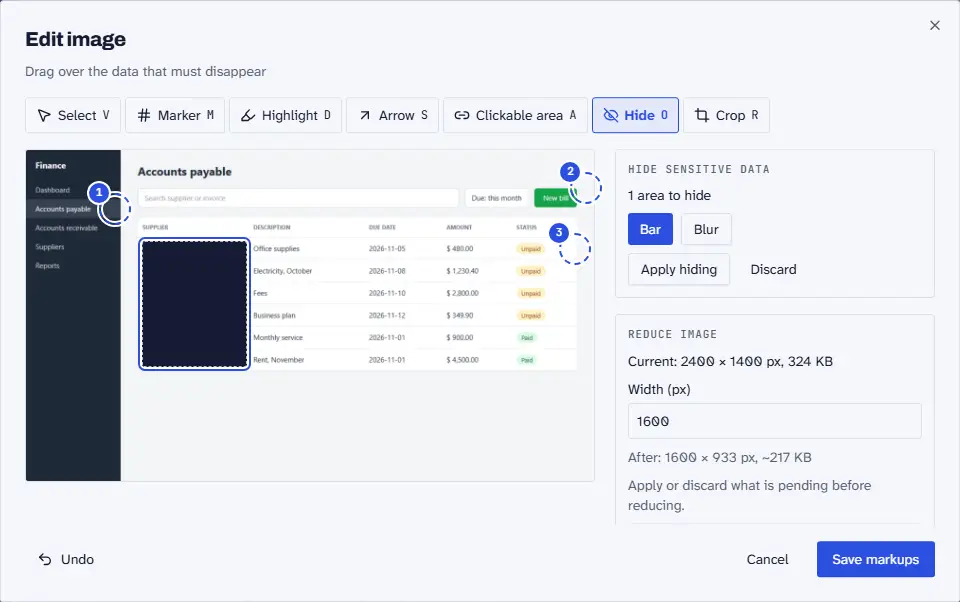
Select the area with the Hide tool (key O) and pick a bar or a blur. Studio burns the effect into the image pixels and deletes the original. No layer is left for someone to remove later.

  • Bar or strong blur. The bar is the default. The blur pixelates and smears the area.
  • Original deleted. If the manual folder is in git, Studio warns you first.
  • Old exports. An on-screen reminder says HTML and PDF files you already made still hold the original. Export again.
  • Nothing happens until you apply. Leaving without applying asks for confirmation.
Accounts payable screen in the Edit image window, with the Hide tool: a dark bar covers the Supplier column of the table.
The bar covers the supplier column before you apply it.

The manual comes out looking like the client's.

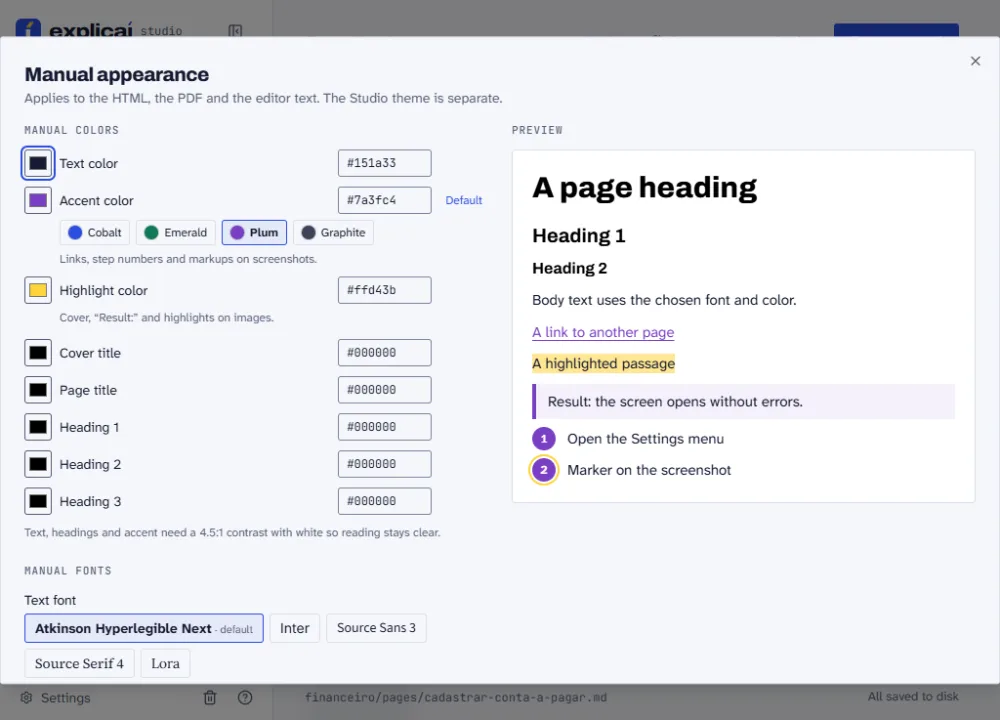
In Settings, under Manual appearance, you upload the logo and pick the colors, fonts, cover and footer, with a sample that updates as you go. Each manual keeps its own theme, so one client's look never leaks into another's.

  • Logo on the cover. It also shows at the top of the contents, in HTML and PDF. PNG, JPG and SVG.
  • Theme colors. Text, accent, highlight and each heading level, with ready palettes and the color code.
  • Nine fonts. Archivo, Atkinson Hyperlegible Next, Inter, Source Sans 3, Source Serif 4, Lora, Montserrat, Playfair Display and JetBrains Mono. They travel with the exported HTML, no network needed.
  • Cover and footer. Subtitle, author, version and date on the cover; text and page numbers in the PDF footer.
  • Contrast warning. The screen warns you when a color does not reach 4.5:1 against white.
Export manual dialog scrolled to the client logo and the manual colors: the Prado Accounting logo is uploaded and the Plum palette is selected.
Logo, colors, fonts, cover and footer live in Manual appearance, before you export.

Crop, resize and slim down the screenshot.

Full-screen shots are heavy and distracting. Crop what matters, choose how much room the image takes and shrink the file.

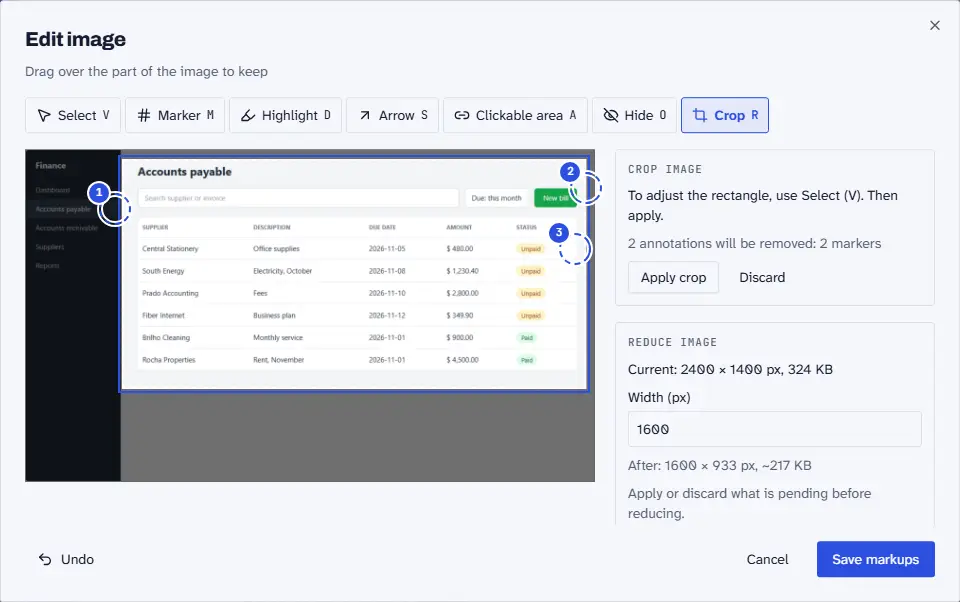
  • Crop (R). Markups follow the crop, and the confirmation lists the ones that will go away.
  • Size. Small, Medium or Large. It is stored next to the image and applies in the editor, HTML and PDF.
  • Reduce resolution and weight. Suggests 1600 px wide, shows the weight before and after and never scales an image up. It is free once no crop or hiding is pending.
Accounts payable screen in the Edit image window, with the Crop tool: a rectangle marks the part to keep and the rest is dimmed.
A crop in progress and, beside it, the Reduce image panel.

Mark up the screen and explain each point.

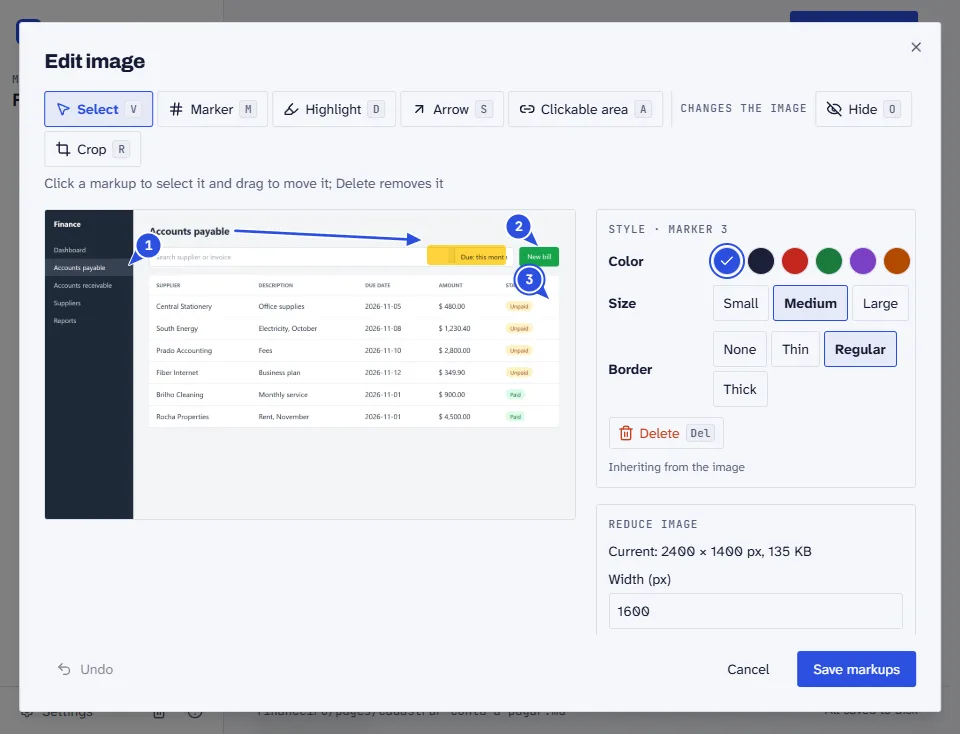
Numbered markers, highlights, arrows and clickable areas, with a caption for each number. The same markup shows in the editor, HTML and PDF.

  • Letter shortcuts. V selects, M places a marker, D highlights, S draws an arrow, A makes a clickable area.
  • Clickable area. A spot on the screenshot becomes a link to another page of the manual.
  • Captions. Readers see the number and what it points at, right below the image.
Accounts payable screen in the Edit image window, with three numbered markers on the menu, the New bill button and the status, the due-date filter highlighted in yellow and an arrow pointing at it.
Markers, a highlight and an arrow on the screenshot, with a caption for each number.

And more

Review before you send.

Every page has a status: draft, in review, approved, published. Export can carry only the approved ones, and the “Manual version” marks what counts as final.

PDF, HTML or Markdown.

One click makes the format. The PDF goes by email, the HTML opens in the browser and the Markdown comes out as a single file, with screenshot captions as text. PDF export needs Chrome, Edge or Chromium installed.

Page editor.

Alerts, a / menu with blocks, tables with row and column controls, text color and Ctrl+V to paste the screenshot.

Local, no account.

Studio opens on localhost and saves to a folder of yours, as Markdown and images that fit in git. If another editor touches the page, Studio warns you instead of overwriting. MIT license.

One manual, many audiences.

Mark who sees each page, such as student or admin, and export one manual per audience. Create, rename and remove audiences in Settings.

Snap it, explain it. Explicaí builds the manual.

npx explicai manuals

Needs Node 22.12 or newer.